Class Hours: 10:05 – 2:40
Mr. Bohmann | wbohmann@ewsd.org
10:05 Today’s Notes & Attendance
- Field Trip today at Champlain Fair Grounds
- Leaving on the bus at 10:15 so arrive to class on time
- We’ll be picked up at 12 noon and return to CTE
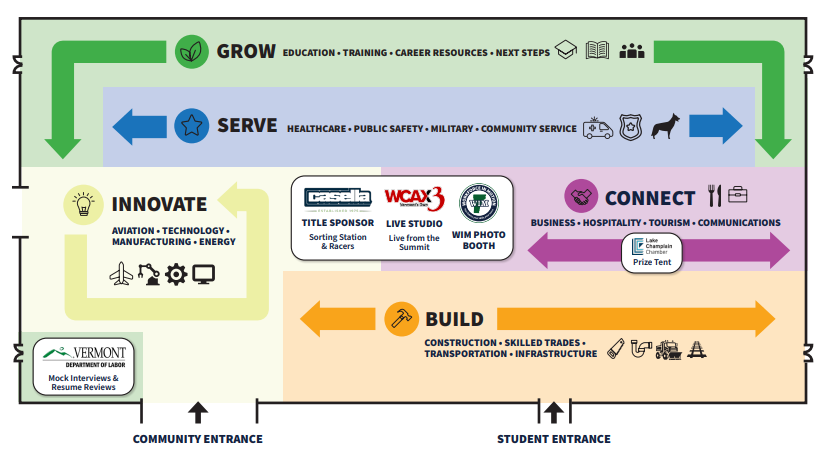
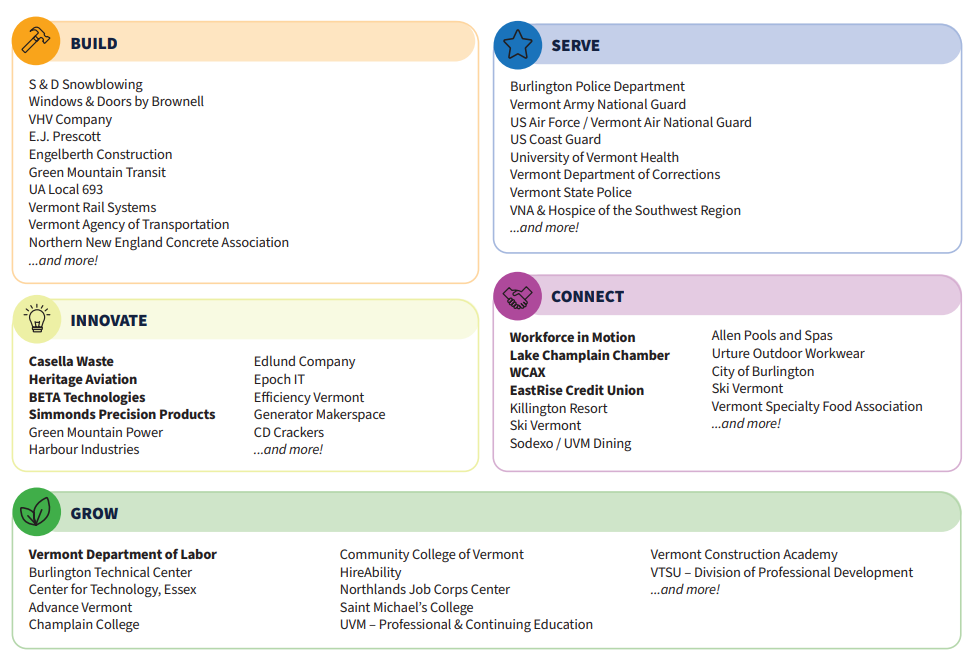
10:15 Departure to WorkForce in Motion Field Trip

- Bring scavenger hunt and writing utensil
- WorkForce in Motion Website
12:00ish Lunch – We also ordered bag lunches – remember?
12:30 Visual Effects / After Effects
We’ll do a quick review and then let’s look at some common shapes, repeaters, trim paths and tapers to get a better understanding of layers and shape layers.
There are two types of Shapes: Parametric and Bezier.
- Bezier shapes can be edited at the vertex points, Parametric shapes cannot
- Shapes are Vectors (so that’s cool)
- A shape layer can have more than one shape. Shapes can be grouped
- If you don’t have a layer selected and draw a shape – it will create it’s own layer
- If you have a non shape layer selected and draw a shape you will create a mask
Parametric Shapes – these are your basic shapes found in the tool menu.
The following technique can be applied to any of the shapes:
To draw a rectangle or rounded rectangle, drag diagonally.
To draw a square or rounded square, Shift-drag diagonally.
If drawing a rounded rectangle or rounded square, do the following before releasing the mouse button:
To increase or decrease the corner roundness, use the Up arrow key or the Down arrow key, or roll the mouse wheel forward or backward.
To set corner roundness to the minimum or maximum, use the Left arrow key or the Right arrow key.
Bezier Shapes – using then pen tool – allow you to customize your shape
You can create a Bezier mask using the Pen tool on a selected layer in the Composition or Layer panel. You can create a shape with a Bezier path using the Pen tool on a selected shape layer in the Composition panel. If you draw with the Pen tool in the Composition panel with no layer selected, you create a shape on a new shape layer.
We also can create shapes from vector layers (we saw that yesterday from our Illustrator files) and can create shapes from Text Layers – let’s try that too
Select Layer > Create Shapes From Text.
Right-click the layer or text and choose Create Shapes From Text or Create Shapes from Vector Layer
Finally, let’s look at all the of the Transform properties of our shapes
Bonus Content: Advanced 3d for extruded text and shape layers
1:10 Afternoon Break
1:25 Speed Design
1:45 Independent Production & Guided Support
- Animated Person Logo using After Effects (2) – Due Monday, October 5th
- Week Five Agency – Due Monday, October 5th
2:10 Dailies
2:15 Independent Reading
2:40 Dismissal