Class Hours: 10:05 – 2:40
Mr. Bohmann | wbohmann@ewsd.org
10:05 Today’s Notes & Attendance
- Today is the last day of March
- Wednesday, SLC meeting at 11:30am
10:10 Game Development Journal
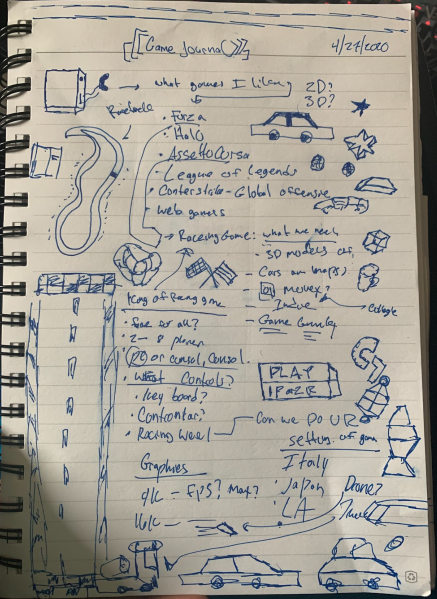
A Game Developer’s Journal is a tool to organize and record the development process of your own ideas and work. It’s like a diary for your game thoughts and ideas. Some people keep journals for business ideas, some for artwork, you get the picture.
Your journal can look like anything you want it to. The easiest route is to your first journal is to find a notebook, legal pad or bound stack of paper. Whatever you choose, protect it and personalize it.
You can include drawings, doodles, color whatever. Game developers & designers need to keep focused to move projects from ideas to execution. The journal is your collect-all and fail safe to ensure this happens.
As such, be sure you:
- Record all your ideas and state how you got them . What was your inspiration?
- Write about the challenges you experienced during the process and how you resolved
them. - Do not erase notes or entries, but revise and expand upon them .
- Add sketches and drawings to make things clear .
- Put a date each time you start a new entry. This will help you track progression.
- Jot down your ideas and sketch them out when appropriate . Sometimes it is easier to draw pictures that illustrate the connections between ideas, sequences, or events.
Your task: Create your very own Game Developer’s Journal and bring to class. Due Friday for an easy, easy grade! Just show it to me! Almost anything can be your journal!
10:20 PinBall – Launch
We have a ball launch that sends the ball when we press the spacebar. However, Sometimes in pinball we might want to add more force or less force depending on how much we want the ball to move. I’ve included a pretty advance script and I don’t need you to worry about it too much. We’ll look at what public variables we have access to and then plug in the rest of the details.
Potential Problems solved in this script:
- What if the ball does not make it our of the chamber?
- What if the ball orientation is upside down?
- Spacebar should be reset so we can try again
- Spacebar should reset when ball is confirmed to have left the chamber
Bonus: If we were really good, we could add a UI element so show how much force!
using UnityEngine;
using UnityEngine.InputSystem;
using UnityEngine.UI;

public class PinBallLauncher : MonoBehaviour
{
    [Header("Launch Settings")]
    public float maxForce = 40f;
    public float chargeSpeed = 15f;
    public Vector2 launchDirection = Vector2.up;

    [Header("UI References")]
    public Slider chargeSlider;

    [Header("Physics References")]
    public Rigidbody2D ballRB;
    public Transform launchPoint;

    private float currentForce = 0f;
    private bool isCharging = false;
    private bool ballInLauncher = true;

    public InputAction launchAction;

    private void OnEnable()
    {
        launchAction.Enable();
        launchAction.started += ctx => StartCharging();  //ctx stands for callback context
        launchAction.canceled += ctx => ReleaseBall();

        if (chargeSlider != null)
        {
            chargeSlider.minValue = 0;
            chargeSlider.maxValue = maxForce;
            chargeSlider.value = 0;
        }
    }

    private void OnDisable() => launchAction.Disable();

    void Update()
    {
        if (isCharging && ballInLauncher)
        {
            currentForce = Mathf.MoveTowards(currentForce, maxForce, chargeSpeed * Time.deltaTime);

            if (chargeSlider != null) chargeSlider.value = currentForce;
        }
        chargeSlider.fillRect.GetComponent<Image>().color = Color.Lerp(Color.green, Color.red, currentForce / maxForce);
    }

    private void StartCharging()
    {
        // Only allow charging if the ball is physically in the launcher zone
        if (ballInLauncher) isCharging = true;
    }

    private void ReleaseBall()
    {
        if (isCharging && ballInLauncher)
        {
            isCharging = false;

            // Apply impulse force
            ballRB.AddForce(launchDirection.normalized * currentForce, ForceMode2D.Impulse);

            // Reset UI and internal force immediately
            currentForce = 0f;
            if (chargeSlider != null) chargeSlider.value = 0f;

            // Note: We do NOT set ballInLauncher = false here.
            // We wait for the ball to pass the "Exit Gate" trigger.
        }
    }

    // This runs when the ball rolls back to the bottom of the plunger lane
    private void OnTriggerEnter2D(Collider2D other)
    {
        if (other.CompareTag("Ball"))
        {
            ResetBall();
        }
    }

    // CALL THIS from a separate trigger script at the top of your plunger lane
    public void OnBallExitedLane()
    {
        ballInLauncher = false;
        Debug.Log("Ball has entered play. Launcher disabled.");
    }

    public void ResetBall()
    {
        ballInLauncher = true;

        // Kill all movement and spin
        ballRB.linearVelocity = Vector2.zero;
        ballRB.angularVelocity = 0f;

        // Reset orientation (Fixes the "wrong direction" issue)
        ballRB.transform.rotation = Quaternion.identity;

        // Snap back to starting position
        ballRB.transform.position = launchPoint.position;

        if (chargeSlider != null) chargeSlider.value = 0f;
        Debug.Log("Ball reset to launcher.");
    }
}
Link to full script in Public Folders
10:50 Morning Break (10 minutes)

11:00 Pinball Sound in Unity – add Sounds to Bumpers
Let’s tackle adding some sounds for the bumpers in our game. We’ve done sound before. We’ll need an audio listener and then and audio component. Then we can write a script to play a sound if we run into something.
The Main Camera has a game component called Audio Listener. It’s job is to listen for audio in the game and then play it back. So we don’t actually need to add that to our game.
Any game object can have an Audio Source component. In fact, a game object can have more than one Audio Source component. Each time you add an Audio Source, there is a slot for you to put in the sound you want to play. Once we add the Audio Source to our Game Manager – let’s open up the component and see what’s there.
In the case of our pinball game, I want to take advantage of our new Game Manager. Sounds might be created depending on what the ball is doing, We’ll add three sounds to the ball – bumper, bumper2 and launch and add those to our Game Manager.
[Header("Speaker/Sound")]
[SerializeField] private AudioSource sfxSource; //add One AudioSource
public AudioClip bumperClip;
public AudioClip bumper2Clip;
public AudioClip launchClip;

//now we make the public Functions that we can call from other scripts:
public void PlayLaunch()
     {
      sfxSource.PlayOneShot(launchClip);
      Debug.Log("SoundPlayed");
     }

public void PlayBumper() => sfxSource.PlayOneShot(bumperClip);
public void PlayBumper2() => sfxSource.PlayOneShot(bumper2Clip);
Example on how to use this in your game on a Bumper:
private void OnCollisionEnter2D(Collision2D collision)
{
    if (collision.gameObject.CompareTag("Ball"))
    {
        // Simple one-liner to play the sound via the  Game Manager
        GameManager.gmInstance.PlayBumper();
    }
}
Example in your PinBall Launcher Script
private void ReleaseBall()
{
    if (isCharging && ballInLauncher)
    {
        // ... your physics code ...
        GameManager.gmInstance.PlayLaunch();
    }
}
When using Audio in Unity, we can choose Play or PlayOneShot. The primary difference is that PlayOneShot allows multiple sounds to overlap, while Play can only play one sound at a time per AudioSource component.
Challenge – create a sound for when your ball hits the killbox
Some places to generate and collect sounds:
- FreeSound
- OpenGameArt.org
- ChipTone
Here is the fix for resetting the spamming of the SpaceBar – the code is already in the script, however we did not make an Exit script for our Gate at the end of the launch area. We also need to set our Gate to a trigger.
public class LauncherExitGate : MonoBehaviour
{
    public PinballLauncher launcher; // Drag the Launcher object here

    private void OnTriggerEnter2D(Collider2D other)
    {
        if (other.CompareTag("Ball"))
        {
            launcher.OnBallExitedLane();
        }
    }
}
Add Sounds to your game.
11:55 Lunch

12:25 Afternoon Worksession
- Career Exploration – Due Friday, April 3rd
- 2D Lip Sync – Due April 8th
- Build out structure of video game – add ball launch, score, game manager, flippers (flipping)
- Test as you go – layout might need lots of adjustment – same with colliders
- Game Dev Journal Due Friday – April 3rd
1:10 Afternoon Break
1:25 Speed Design

2:10 Dailies

2:15 Independent Reading

2:40 Dismissal