Class hours: 10:05 – 2:45
Mr. Bohmann | wbohmann@ewsd.org
10:05 Today’s Notes & Attendance
- Wacky Wednesday – early lunch
- SLC Meeting today for those in the Graduation group
- Skills resumes tomorrow – Animation Folks – I’ll post dayplan for Thurs / Friday after lunch
- College Acceptance – don’t commit until you see your financial aid packages (Emmy Message)
- Remember – you are off from March 19th – 24th (Step Up day and WorkKeys exemptions) maybe a good time to think about post graduation summer employment?
10:10
10:05 Unity Pinball Continued….
Let’s jump back to our pinball game this morning. This will be a combination of design and programming.
We have:
- Bumpers
- Paddle
- Ball
- Boundaries
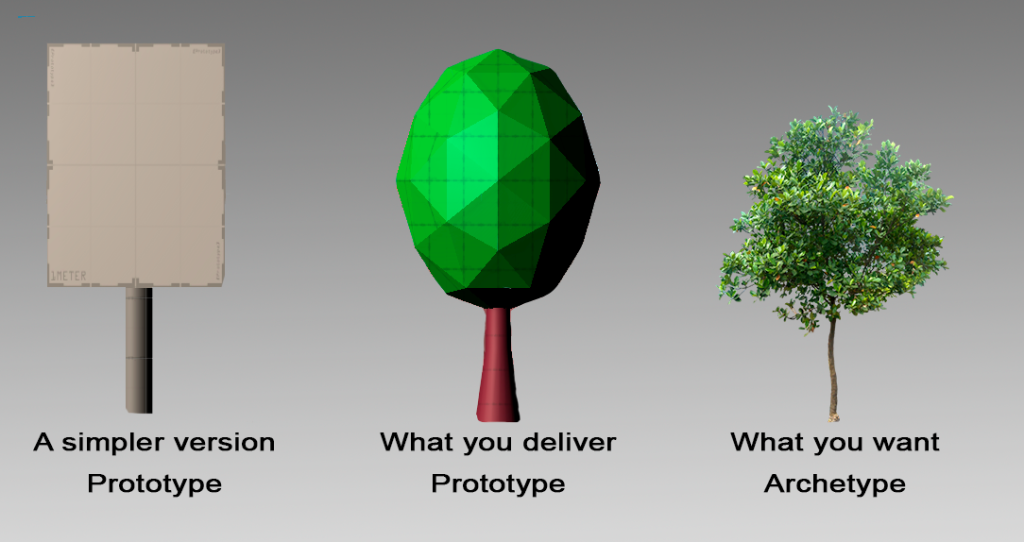
Right now we are creating a simple prototype. Later we an add our own look to customize our game. Let’s just get the mechanics working. A minimum viable product is what we are after.
For the prototype we need
- A Movement Script for your player so that when you use the A or D key, your paddle moves around
- Launch a ball and A Ball Script for detecting game over (We’ll code together)
- Use physics materials (that you create) to manage your bumpers
- PlayTest your game
- Respawn Point
- Adding Flippers
- Basic Scoring – Maybe with a Game Manager
Once we get our prototype working, we’ll swap out the paddle for some flippers. For now, let’s launch a ball. We’ll be tackling some physics concepts along the way.
ForceMode2D.Impulse
- Add an instant force impulse to the rigidbody2D, using its mass.
- Apply the impulse force instantly. This mode depends on the mass of rigidbody so more force must be applied to move higher-mass objects the same amount as lower-mass objects.
- This mode is useful for applying forces that happen instantly, such as forces from explosions or collisions.
- Perhaps we can have a launch button – maybe spacebar!
    private Rigidbody2D rbBall;
    [SerializeField] float ballThrust;
    [SerializeField] InputAction launchBall;

    void Start()
    {
        rbBall = GetComponent<Rigidbody2D>();
    }

    //when using the new input system, you must enable the assigned key bindings
    //that is what OnEnable method does
    private void OnEnable()
    {
        launchBall.Enable();
    }

    // Update is called once per frame
    void Update()
    {
        if (launchBall.IsPressed())
        {
            Launch();
        }

    }

    void Launch()
    {
        rbBall.AddForce(transform.up * ballThrust, ForceMode2D.Impulse);
    }
}
//now one of the problems might be that if the ball is moving, we can still use the spacebar -
//this can be solved with a boolean to check to see if something is true and locks the input until it is reset.
Let’s add a killbox and also a respawn point
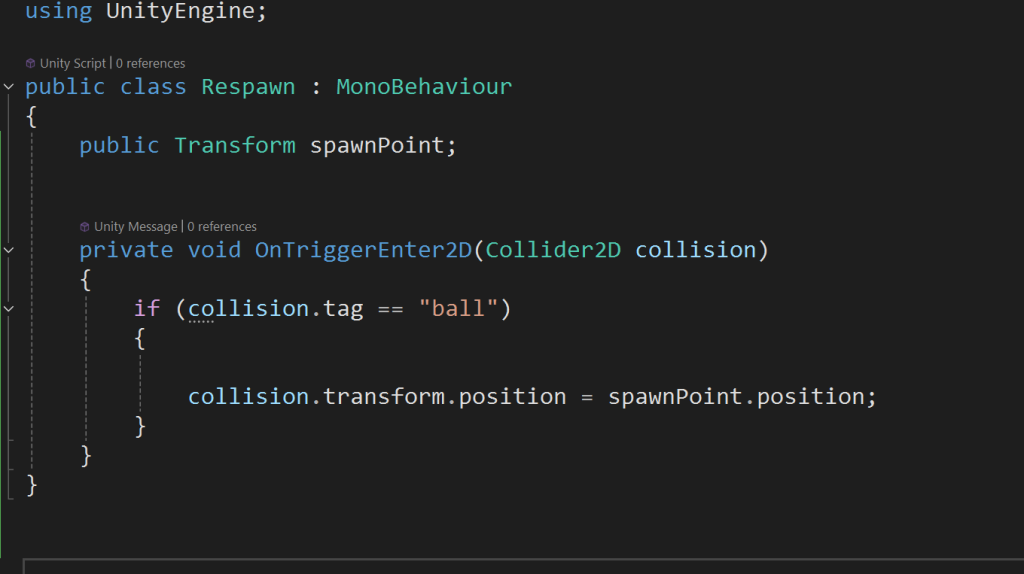
There are some problems with this of course, specifically the ball’s orientation. We’ll need to reset.
10:50 Break

11:00 More Unity!
Left Flipper and Right Flipper – let’s set up the scripts and we’ll tackle the constraints later. etc…..
Your Task: Select a Theme for your pinball game board. Design a shape and placement of bumpers, ball launch, etc… Start on paper for rapid prototyping – then move to digital. Paper designs are due to Friday – don’t overthink. Shapes are fine. But do know your theme (space madness, grumble volcano, city hunter). We can then go to Illustrator or Photoshop and begin to make assets to improve our prototype.
11:35 Lunch

12:05 PSA Jam Session

12:30 PSA Animatics – First Looks
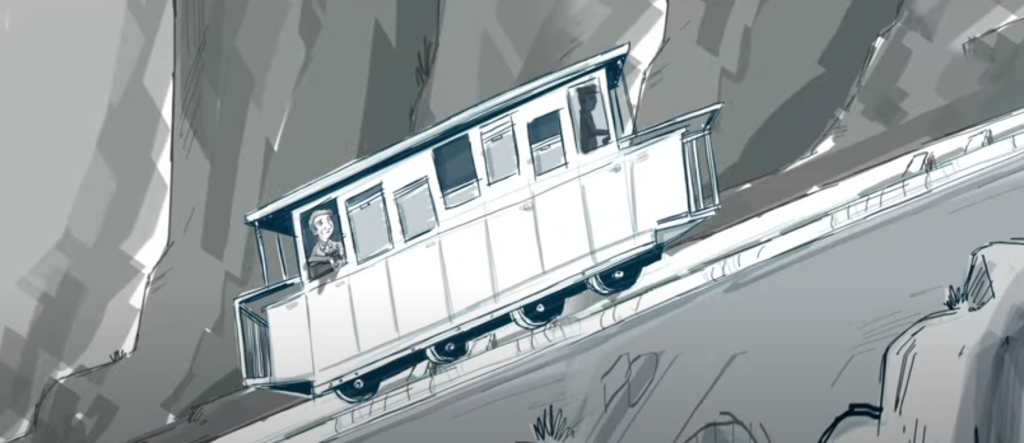
Regardless of where you are in your PSA story, let’s get a first look at where things are going. Ideally you have an animatic which is the animated key poses of your storyboard. You can drop your animatic in today’s dailies. Filename:Animatic_Lastname.mp4.
Animatics do not need materials. Viewport renders are ok too!
1:00 Afternoon Break (15 minutes)
1:15 Dailies

1:20 Independent Reading