Class hours: 10:05 – 2:45
Mr. Bohmann | wbohmann@ewsd.org
10:05 Today’s Notes & Attendance
- Wacky Wednesday
- Announcements – Illuminated Rocky Path is due on Friday
- Jacob – portfolio today after lunch
- Early Lunch today
- No School on Monday, May 25th for Memorial Day
- Begin to think about a game you want to make (all on your own)…
10:50 Space Sentry – GAWD2 Team Game Challenge Continued…
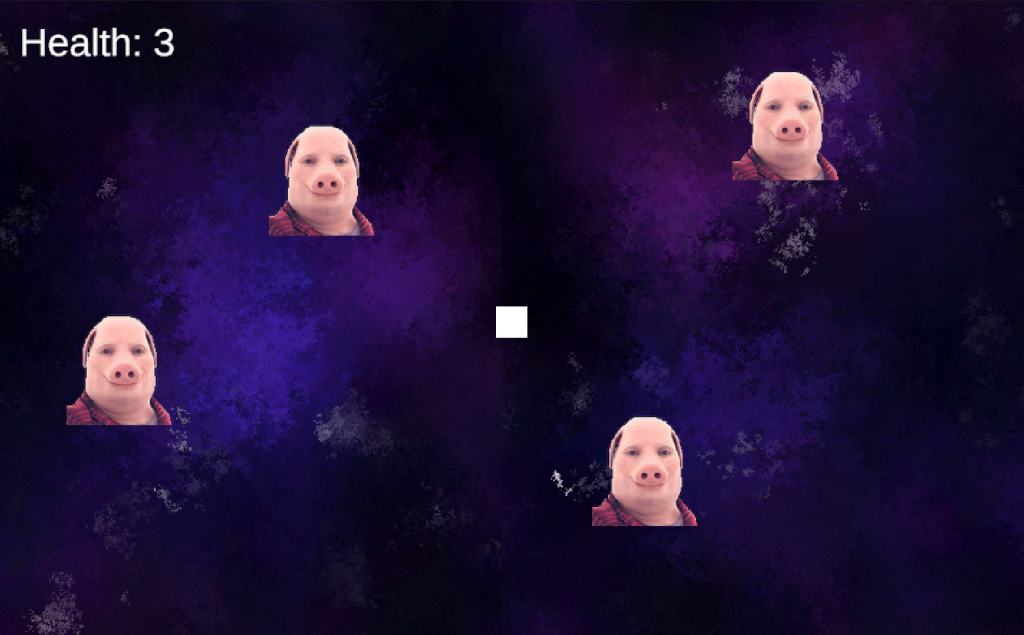
May I suggest a Scrum Meeting….
To be successful as a team, you need to know the deliverables:
- One Game Design Document (Here is a template). It’s just a template – you can expand!
- A playable game (prototype is fine) in Unity IDE or published to Unity Play
- Win Conditions
- Lose Conditions
- Restart
- Home Screen with Game Title
- Play Button that opens the game
- Credits Button that opens Credits Screen (credits list roles of all team members)
- A short video trailer of game play to show off mechanics – Promo Reel
- One round of game testing with GAWD 1 and/or staff members
- Testing Summarized in Google Doc with planned solutions (you don’t actually have to fix)
- Project Due Date: Tuesday, May 19th – 11:30AM
- A representative will share the story of the team
- Process
- Successes
- Challenges
- Organizational Strategies
- Game Overview
- Sample Gameplay (in the form of a video Trailer)
- and….. We will see and play your game – on one of your computers for from Unity Play!
- A representative will share the story of the team
Today’s Deliverable – Demonstrate the Core Game Mechanic
(If it is jumping that’s what we want to see)
Filename: SpaceSentry_CoreMechanicDemo_mp4
10:50 Morning Break (10 minutes)

11:00 Space Sentry Continued….
11:35 Lunch

12:05 Tilemaps continued…
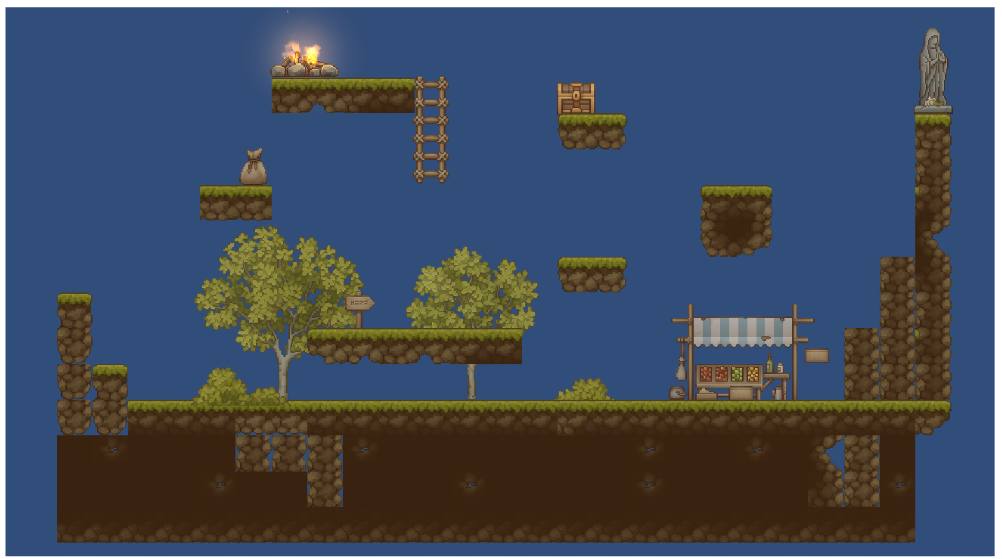
Let’s add a player, player animation, player controls and colliders and see how the tilemap and game design come together into one coherent play space. Oh, and some code…
Animation Review – Here is the flow to make an animation
- Import and slice spritesheet
- Add SpriteRenderer component to player
- Create an idle animation clip (or any animation)
- Create Character Animation Controller
- Add animation clip to the controller
- Add Animator component to your player
- Assign Character Animator Controller to player
Some code for you today…
using UnityEngine;
using UnityEngine.InputSystem;

public class PlayerMovement : MonoBehaviour
{
    private Vector2 moveInput;
    private Rigidbody2D myRigidBody;
    private SpriteRenderer mySpriteRenderer;
    [SerializeField] private float moveSpeed = 10f;
    [SerializeField] private float jumpSpeed = 10f;
    private Animator myAnimator;

    private void Start()
    {
        myRigidBody = GetComponent<Rigidbody2D>();
        mySpriteRenderer = GetComponent<SpriteRenderer>();
        myAnimator = GetComponent<Animator>();
    }

    private void Update()
    {
        Run();
        FlipSprite();
    }

    private void OnMove(InputValue value)
    {
        moveInput = value.Get<Vector2>();
    }

    private void Run()
    {
        Vector2 playerVelocity = new Vector2(moveInput.x * moveSpeed, myRigidBody.linearVelocity.y);
        myRigidBody.linearVelocity = playerVelocity;

        bool playerHasHorizontalSpeed = Mathf.Abs(myRigidBody.linearVelocity.x) > Mathf.Epsilon;
        //line above checks to see if movement is happening - Abs means absolute.  Epsilon means zero but better for RB
        myAnimator.SetBool("isRunning", playerHasHorizontalSpeed);
    }

    private void FlipSprite()
    {
        if (myRigidBody.linearVelocity.x < -.01f)  //get the character and flip character if moving left on x or negative numbers
        {
            mySpriteRenderer.flipX = true;
        }
        else if (myRigidBody.linearVelocity.x > .01f) //get the character and flip character to face right on x or positive numbers
        {
            mySpriteRenderer.flipX = false;
        }
    }

    private void OnJump(InputValue value)
    {
        if (value.isPressed)
        {
            myRigidBody.linearVelocity += new Vector2(0, jumpSpeed);
        }
    }
}
1:00 Afternoon Break (15 minutes)
1:15 Dailies

1:20 Independent Reading