Class Hours: 10:05 – 2:40
Mr. Bohmann | wbohmann@ewsd.org
10:05 Today’s Notes & Attendance
- Welcome back from Vacation – Week 29
- Last stretch of classes with grading closing the first week of June
- Web Certification Exam – On Monday June 8th 2026 at 10:30 AM EST GAWD will sit for the Web Designer certification exam, run by the Web Professionals Organization.
- Unity Certified Artist exam will be completed the last week of May. We’ll practice.
- When you arrive – open Unity and create a new 3D URP Project – SkySweeper
10:10 Monday Mail

10:11 Tentative Breakdown of Games
| Game Type | ||
|---|---|---|
| 3D Rail Shooter | together | April 27th – May 8th |
| 2D Breakout | solo | April 28th – May 13th |
| One Button | Teams | May 14th – May 19th |
| Solo Game Build | Individual or Partner | May 20th – June 5th |
One Button Game Pitch – Wednesday

Dropbox in Google Classroom
Talking Points
- Why should we play it?
- Game Name
- Quick Summary
- Which/What button – what is the core mechanic
- Win Conditions
- Lose Conditions
10:25 New Game Build – Sky Sweeper
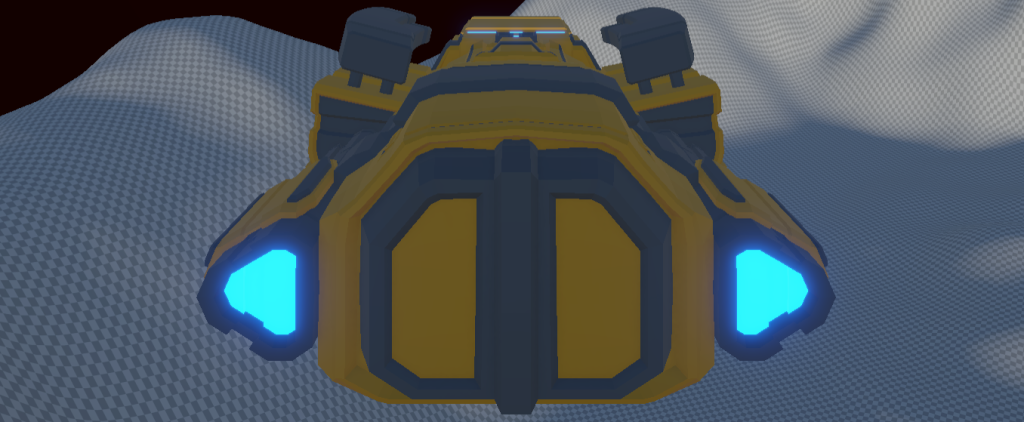
Game Type: 3D Rail Shooter
Game Mechanics: While set in 3D space, the user will fly a ship through a predefined space (set up on rails) to shoot down environmental trash littering our special planet.
Win Condition: Avoid obstacles and successfully collect as much trash as possible while surviving with one life to the end of the level.
Lose Condition: Crashing and/or not enough trash collected
Environment: Our ships will fly over a mountainous landscape. The camera will follow the ship and the player will be able to move up down left and right while set on a predefined rail. We’ll use a particle system to create our shooting mechanic for a nice effect. Trash will be set on animation timelines. We’ll need some good audio and visuals.
We are going to need some assets for this. We can raid the Asset Store and create our own. Before break, many of you created your own trash collector ship. You can also use some of my assets found in the Unity resources folder.
Today we will:
- Set up the Game Environment
- Use terrain tools to build out our landscape
- Add some skybox options
- Add our ship and set up the basic rail system.
- Minimal programming today – just clean, organized project and assets
10:50 Morning Break (10 minutes)

11:00 Sprites and Unity
Sprites are simple 2D objects that have graphical images (called textures) on them. Unity uses sprites by default when the engine is in 2D mode. When viewed in 3D space, sprites will appear to be paper-thin, because they have no Z-width
Sprites can be made using a variety of programs. Photoshop & Illustrator is a great place to make your custom sprites. In addition, Photoshop (if set up well) can be really handy for making animated sprite sheets and for viewing animations by placing layers in the photoshop video editor(Timeline) window.
Why sprite sheets? Simply, importing multiple sprites into Unity with a sprite sheet cuts down on file size and reduces heavy resource allocation. Imagine if you had a tiles for a side scroller and all of the tiles were imported as individual sprites? You’d have tons of files and a lot of space allocated for wasted pixels.
You can create your own sprite sheet templates in PS or Illustrator.
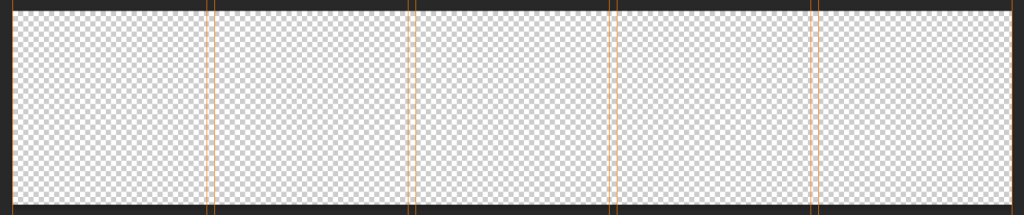
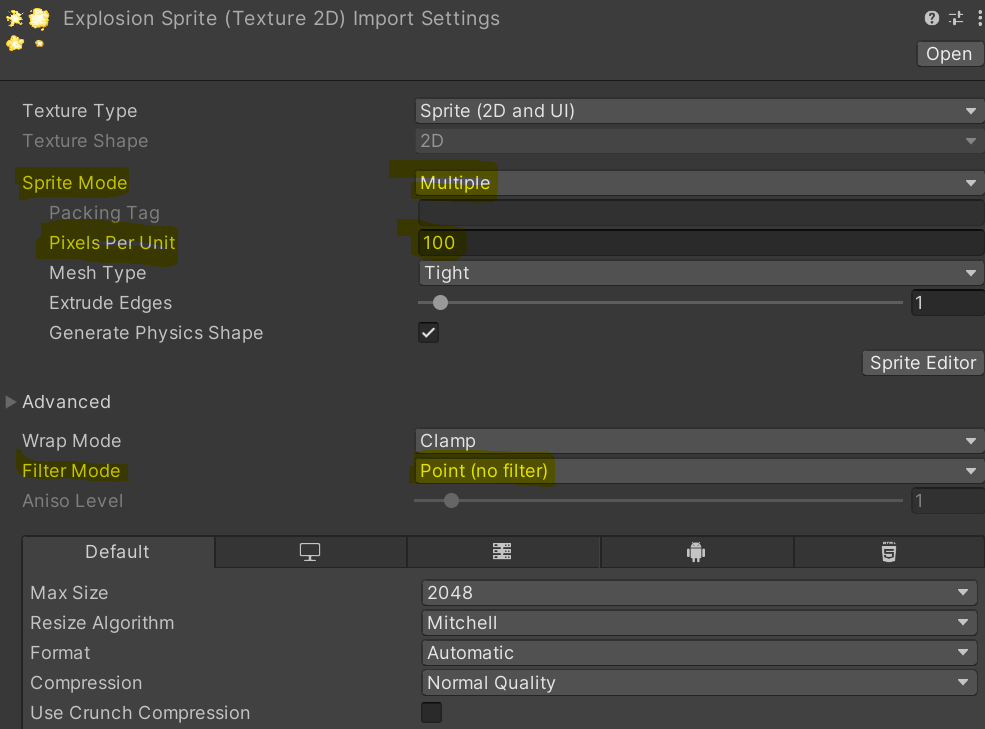
Importing Sprites to Unity is easy. Import new asset into a Sprites folder. In order to use the sprites, we’ll need to let Unity know we have a sprite sheet or an individual sprite. Then we’ll go to the sprite editor and slice the sprites. We’ll do this together.
Let’s take a look at a short cut to making sprites in Photoshop using Unsplash. We’ll start by finding an image of a ball.
- Download Image
- Remove Background from photo
- Posterize – Under Adjustments
- Copy Layer to your sprite sheet
- You can also add the Pixelate / Mosaic from the Filter Gallery for more pixel effect
Activity: Create a 5 sprite, Sprite Sheet. Theme of your choosing. Import your sprite sheet into the Game Programming project in a new scene called SpritePractice.
When importing to Unity, experiment with changing the pixels per inch. For today’s work, just get some practice using the pencil tool and making sprites. We’ll do a gallery walk at 11:50.
11:55 Lunch

12:25 IRC Prep Work
This afternoon we’ll begin some prep for the certification exams we are taking in Unity and Web Developer.
Login to GMetrix and begin work on the practice test. This is open note – so do look up answers you do not know. There are many questions on lighting and rendering that will cover in the coming weeks.
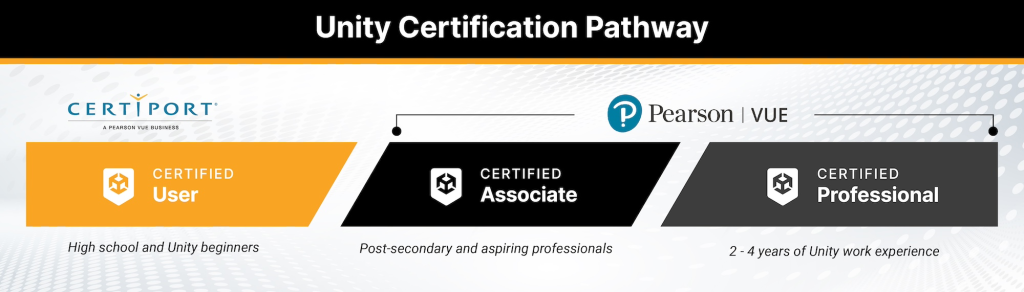
After working on the Unity Cert, we’ll use the last 20 minutes before break to work on the Web Design certification. HTML, CSS and JS. You remember this from last year. For now, open note – focus on accuracy and not speed. See if you can score a 90 or better. Look up answers for questions you don’t know or are not sure about. Practice makes perfect.

1:10 Afternoon Break
1:25 Speed Design

To import brushes in Photoshop, open the Brushes panel (Window > Brushes), click the hamburger menu icon (three lines) in the top-right, and select Import Brushes. Here are some great brushes Collin found:
1:45 Independent Production & Guided Support
- One Button Game Proposals due Wednesday.
2:10 Dailies

2:15 Independent Reading
2:40 Dismissal